 COME
COMEUnderstand COME Notifications without resetting the app
A notification indicator is a prompt to read the notice, not a diagnosis of an installation or account problem.
Work through this situation
The account menu shows Notifications separately from Account and Settings. Read the actual notice before downloading another APK or assuming a reward has been credited.
What to check and why
Open Notifications and read the actual message rather than inferring its meaning from an indicator. Note which account is active and whether the notice refers to an activity, an update or another event. The badge itself is only an invitation to read; it does not identify the event or confirm a credited amount.
If a notice sends you to a record, compare its wording with that record. If it concerns an update, inspect the release information through the appropriate route. Reinstalling the application before reading the notice can create another problem without answering the original question. Preserve the message and time when asking for help so the relevant event can be identified.
Recognise the relevant screen
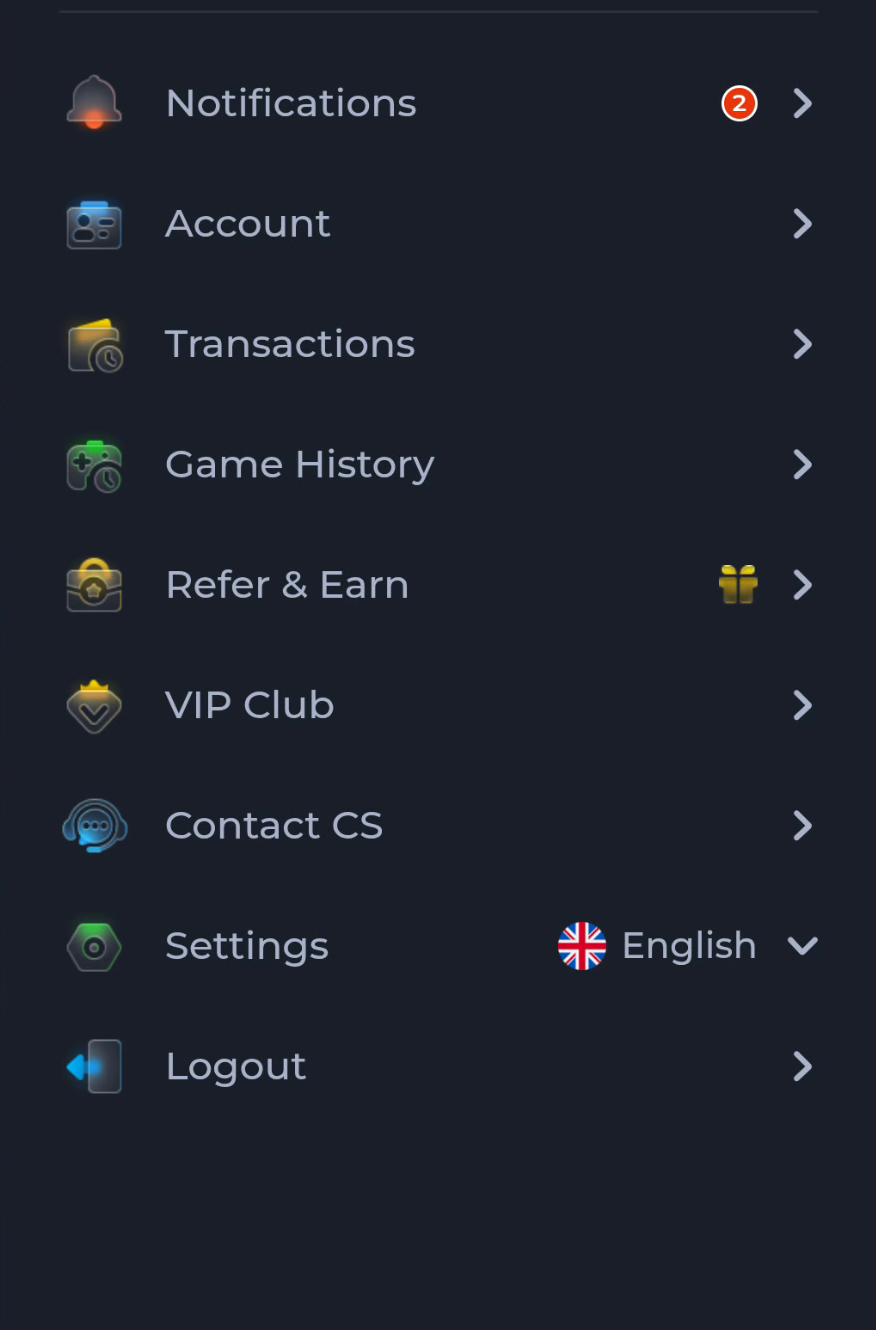
Match help to the task
The account menu and Customer Center provide different routes for preferences, records and assistance. A help-category answer explains a topic, while an account-specific issue needs the relevant service context. Read the visible wording on your own screen because layouts can change. This website provides explanations and navigation; it cannot complete an account action or alter a service record.
What a completed answer looks like
The notice's content, account and time explain the next action.
If the screen still does not answer the question, keep the exact wording and use the matching in-app help context.
Choose another specific COME guide